Showing posts with label Tablets. Show all posts

Unlocking More Users, with Tablets and Games

Posted by Purnima Kochikar, Director of Business Development, Games & Applications


Last week, we unveiled a number of new things in the world of Android. And while we already showcased the new tools available at your disposal in Android 4.3, we also unveiled a new Nexus 7 tablet, as well as the Google Play Games app, both of which represent opportunities to take advantage of a growing number of users.


Nexus 7 and the Android tablet revolution


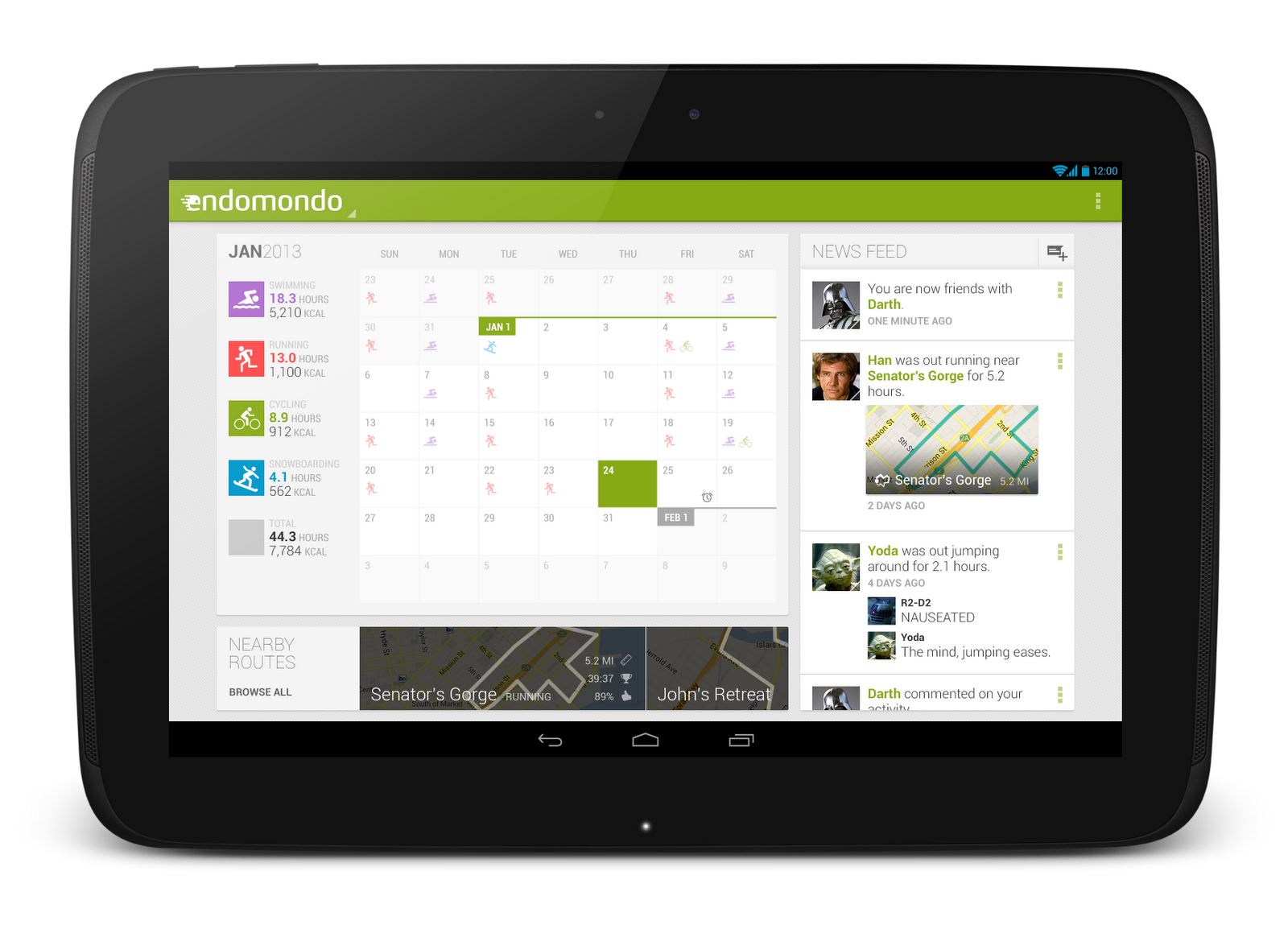
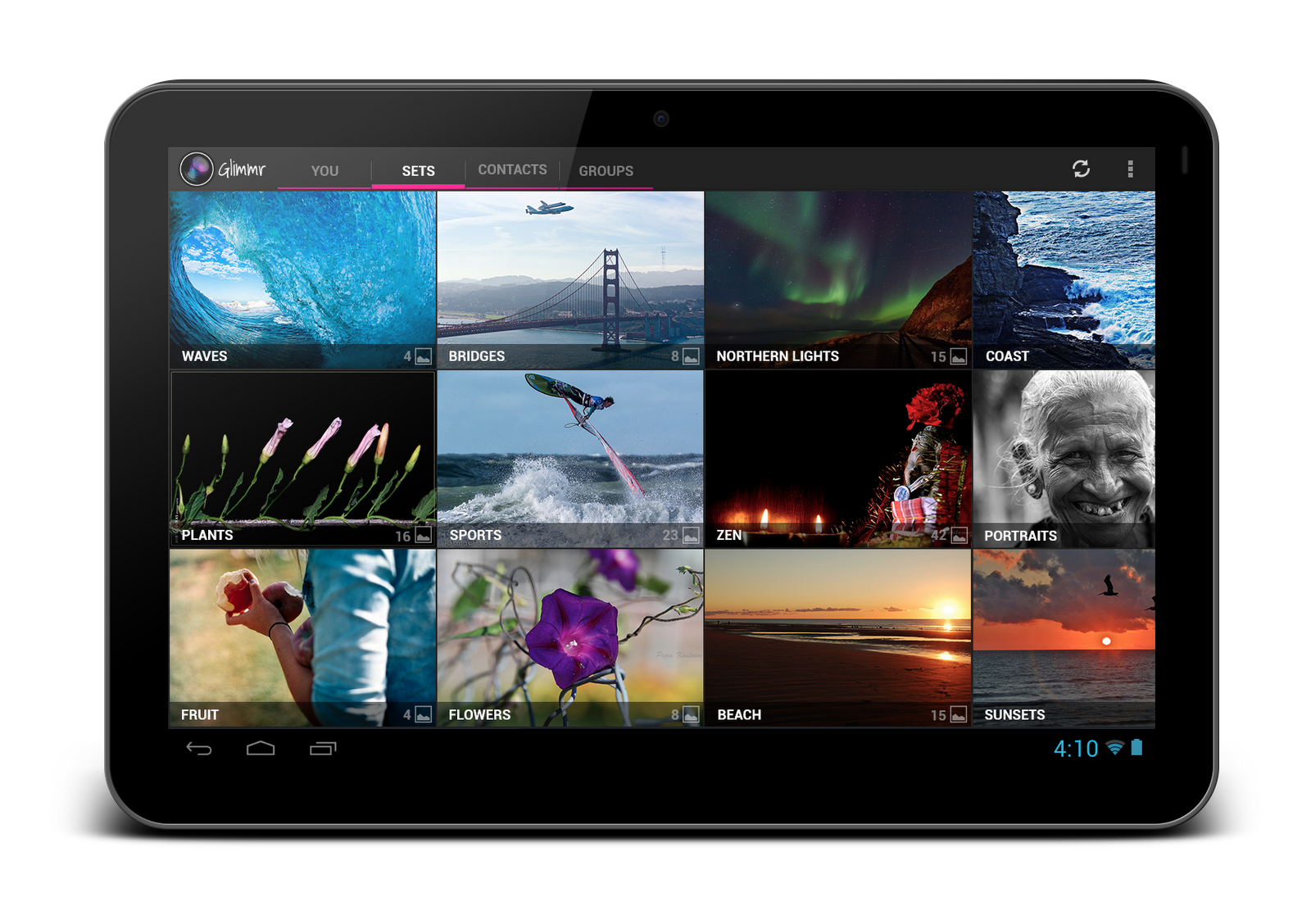
If you’re a developer optimizing your app for Android tablets, no doubt you’re familiar with the original Nexus 7. It was Google’s statement on what a great Android tablet experience should look like, and since then, the Android tablet ecosystem has come a long way. There have already been more than 70 million activations of Android tablets, with more than 1 in 2 tablets sold today running Android. We’re starting to see with Android tablets what could be the hockey stick growth all of us experienced a couple of years ago with Android smartphones, and we hope that the new Nexus 7 continues to fuel this growth even further.


Most top developers on Android have already prepared their applications for this wave of new Android tablet users, including many of the essentials, like the New York Times, Zappos, Evernote, Flipboard, Pinterest and more. To help users find your tablet-designed apps more easily on Google Play, you can now choose to only see apps designed for tablets in the top lists. There are also over 50 new collections, which highlight outstanding tablet apps.


To take advantage of the Android tablet revolution, check out our Tablet App Quality Checklist, which has tips and techniques on how to deliver a great app experience for tablet users. It details all of the key things you need to do to optimize your app for tablets, like taking advantage of the extra screen real estate and adjusting font sizes and touch targets, to things you can do on the distribution side, like declaring support for tablet screens and showcasing your tablet UI on Google Play by uploading tablet-specific screenshots. Optimizing your app for Android tablets will unlock a whole new group of users, like those who are about to receive their new Nexus 7 tablets.


Taking your game to the next level


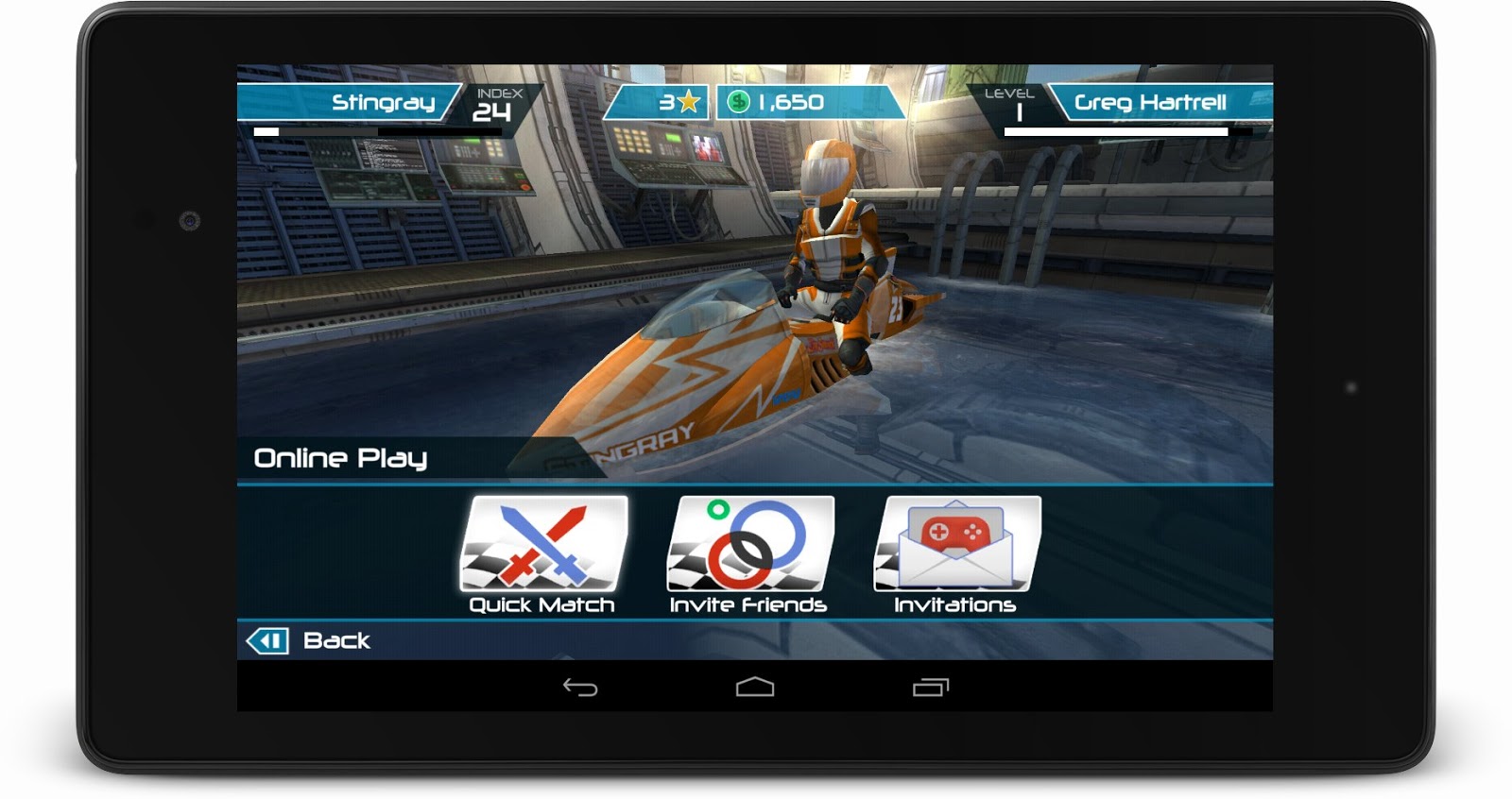
The Android games category on Google Play is on fire; in fact, the vast majority of top mobile game developers are building Android tablet games, and most new titles launch immediately on Android. To help game developers take advantage of the next generation of games, at Google I/O in May, we introduced Google Play game services, our gaming platform for Android, iOS, and the web. By building on Google’s strengths in mobile and cloud services, Google Play game services allows game developers to focus on what they’re good at: creating great gaming experiences for their users.


Turbocharging that growth even more, on Wednesday we introduced the Google Play Games app, which brings your friends together with the games you love, where you can invite a friend and start challenging gamers around the world, compete for top achievements, and race to the top of the leaderboard.


Since the launch at Google I/O, just over two months ago, over one thousand games have added Google Play game services, with millions of users enjoying features like leaderboards and multiplayer inside of the games they love. Some of those early developers using Google Play game services are reporting incredible upticks in vital engagement metrics; for instance, Concrete Software is seeing session length up 15%, and Glu is reporting a 40% increase in 7-day user retention.


Here are a few things you can do to take your game to the next level with Google Play:


  • Integrate with Play Games using achievements and leaderboards to activate your players.

  • Add real-time multiplayer to competitive and cooperative games and increase engagement.

  • Use Play Games branding guidelines and create rich visuals that bolster your presence in the Google Play Games app.


Whether it be getting your app ready for the wave of new Android tablets that are lighting up each day, or opening up a whole new set of features for your users with Google Play game services, a great Android experience starts with a great app or game. That’s why we’re working hard to help provide you with the tools and features needed to create those great experiences for your users, and to help you reach as many of them as possible in the process, with Google Play.


Tablet Optimization Tips in the Google Play Developer Console

Posted by Ellie Powers, Google Play team


Last week we updated our guidelines for making great tablet apps and added the ability to upload tablet screenshots that are shown preferentially in Google Play to users on those devices. Today we’re introducing a new Optimization Tips page in the Google Play Developer Console that lets you quickly see how your app is doing against basic guidelines for tablet app distribution and quality.


When you upload an app, the Developer Console now runs a series of checks to verify basic criteria from the Tablet App Quality Checklist and shows you any issues it finds in the Optimization Tips page.


style="border:1px solid #ddd;border-radius: 6px;"src="http://1.bp.blogspot.com/-w0gl8ttJFFo/UXgQDbepnuI/AAAAAAAACGE/nTanLxr3C7A/s1600/opt-tips-crop-720.png" />

If you’re developing for tablets, make sure to visit your Optimization Tips page to ensure that your app is delivering a great tablet experience. If there are any issues listed, we recommend addressing them in your app as soon as possible and uploading a new binary for distribution, if needed.


For ideas on how to design and build a great tablet app, including details on how to address issues listed in your Optimization Tips page, check out the Tablet App Quality Checklist. Remember that a great tablet experience goes well beyond these basic checks. Keep working to bring your tablet users the most polished UI and richest content possible.


Update on Tablet App Guidelines and Screenshots

Posted by Ellie Powers, Google Play team


More and more, developers are investing in a full tablet experience for their apps and seeing those investments pay off big. Starting today, it’s even easier to show off those tablet apps to users and to understand what it takes to make a great tablet app.


Many of you have already made optimizations to your apps to make them more beautiful and useful on tablets, and we’re giving you a way to showcase your application’s specialized tablet layouts. You’re now able to upload screenshots of your app running on 7” and 10” tablets to the Google Play Developer Console, and those screenshots are shown preferentially in Google Play to users on those devices.


In October, we published the tablet app quality checklist, which shares best practices for creating tablet applications that users will love. We've updated this checklist with additional tips and guidelines, as well as more details on specific technical checks you should perform to ensure your app is correctly optimized for tablets. Soon, we’ll start surfacing tips based on our tablet app quality guidelines directly in the Google Play Developer Console, and we’ll use these guidelines to help users better discover tablet apps in Google Play.


So upload your tablet screenshots and confirm your app follows the quality guidelines today.


style="border:1px solid #ddd;border-radius: 6px;"src="http://3.bp.blogspot.com/-XBN92CKxpaI/UW2VPfuCDrI/AAAAAAAACFU/rdXScleTb7Q/s1600/screenshots-example.jpeg" />

Designing for Tablets? We’re Here to Help!

Posted by Roman Nurik, who often writes about Android design-related topics on Google+

So you’ve got a great Android phone app on Google Play, your users love it, and you’re kicking back and watching the download numbers soar. Congrats! But like any enterprising developer, you may be thinking, “how do I take my app’s success even further?” The answer: an equally awesome experience on tablets. Users love their tablet apps! For example, Mint.com found that the larger screen real estate allowed tablet users to engage with their budget data 7x more than on phones. And TinyCo found that on average, paying users spent 35% more on tablets than on handsets. So now is the right time to think about how your app translates onto these larger screen devices that are designed to meet users’ more generic, everyday computing needs.

In this post, we’ll recap some of the resources available for crafting a great tablet experience for your users. These resources are useful for everyone in the app development pipeline—from product managers, to designers, to developers, and QA engineers.

Android Design Guidelines

No conversation about Android app design or development should go very far without first consulting the Android Design guidelines. While most of the sections are relevant to all Android devices, certain sections stand out as particularly relevant to design on tablets.

The Devices and Displays page introduces the concept of density-independence. For example, although the Nexus 4, Nexus 7, and Motorola XOOM all have a similar pixel resolution (1280x768, 1280x800, and 1280x800 respectively), they have vastly different screens. Instead of thinking in pixels, think in dips (density-independent pixels)—that way, it’s much easier to conceptualize the difference between Nexus 4 (640x384 dp), Nexus 7 (960x600dp), and Nexus 10 or the Motorola XOOM (1280x800 dp).

Following the 48dp rhythm discussed in Metrics and Grids helps take some of the guesswork out of sizing elements, especially for tablets. When in doubt, use multiples of 48dp (or 16dp for a finer grid) for sizing elements horizontally and vertically. For example, when showing sparse content on larger screens, consider using generous side margins of 96dp or 144dp. Or when deciding how wide your master pane should be in a master/detail layout for 10” tablets, see how your master content looks and feels with a width of 240dp or 288dp.

The Multi-pane Layouts guide discusses use cases and examples for combining related views into a single screen to simultaneously improve app navigation and make optimal use of the available screen real estate. It also discusses strategies for laying out content across both portrait and landscape, all while maintaining functional parity across orientations. Since users enjoy using tablets in both portrait and landscape orientations, it’s even more important to react properly to orientation changes than with phones.

Lastly, the Downloadable Stencils offer designers a great starting point for high-fidelity mockups, complete with reference device outlines, correctly sized action bars, and more.

Android Training for Developers

The Training section of the developer site offers task-oriented technical training material, complete with flow diagrams, code snippets, sample projects and more. Several of these ‘classes’ are geared toward helping developers understand how to scale your apps across any screen size.

The Designing Effective Navigation class—aimed more at the initial design phase of the app creation process—offers a methodology for effectively planning and grouping screens on tablets, and even shows example wireframes for a simple news reader application following this methodology.

The classes Building a Dynamic UI with Fragments and Designing for Multiple Screens demonstrate how to use fragments in conjunction with Android’s resources framework. They show how to easily choose between tablet and handset layouts at runtime while maximizing code reuse and minimizing your application size using resource aliases. They also demonstrate techniques for adapting UI flows based on the current layout.

Lastly, while not precisely a training class, the Supporting Tablets and Handsets document offers even more information about some of these key best practices. And if you’re the type of developer that would prefer to skip the text and jump right into the code, you can even add a Master/Detail flow, complete with handset and tablet support, to your app with just a few clicks using the Android Developer Tools for Eclipse.

Android Design in Action Highlights

Each week, a few of us on the developer relations team get together on the Android Design in Action live show to discuss Android design best practices, as well as provide original ‘redesign’ mockups to help demonstrate our vision of how Android apps should look and feel.

A recent episode focused on the topic of responsive design, or designing flexible apps that can adapt to whatever screen size or form factor they’re run on:

In the episode, we celebrated successful examples of responsive design on Android, ranging from creating calendar events in Google Calendar, to browsing wallpapers and stories in Pattrn and Pocket, to playing video in TED, and finally to managing your conference schedule in the open-source Google I/O 2012 app.

We also regularly feature tablet design concepts on the show (some are shown below), so we highly recommend tuning in each week for design ideas.


For even more tablet app inspiration, check out a few of these apps: Expedia Hotels & Flights, Pulse News, SeriesGuide, Tasks and Timer.

The Tablet Quality Checklist

Over in the “Distribute” section of developer.android.com, the recently published Tablet App Quality checklist is a great way to check if your app is tablet-ready along a variety of technical dimensions. You should make sure that everyone involved in your mobile products is aware of  the standards defined in this checklist, as it is one of the ways in which the Google Play team selects apps to feature in the Staff Picks for Tablets collection.

So What are You Waiting For?

It's been an exciting year for Android tablets. Make sure your app is positioned to succeed in the evolving device landscape by following some of the best practices and examples discussed here and on the rest of developer.android.com.

If you have specific questions about your app, let us know on Google+ (+Android Developers) or Twitter (@AndroidDev)!

Smart Galaxy Note II now available on pre-order from Smart Communications


Samsung's new phablet, the Android powered Samsung Galaxy Note is now available for pre-order from Smart Communications at this page.

The Samsung Galaxy Note II has a 5.5-inch HD (720 x 1280) display. The Galaxy Note is designed which is designed to be used with a stylus and comes with software optimized for that purpose. With a 1.6 GHz quad core processor and  2 GB of RAM it is also Samsung's most powerful hand held device. A 3100 mAh battery is used to power the large screen and powerful processor and does a good job of that. GSMArena's battery life tests gives it almost 17 hours of talk time, almost 9 hours of web browsing and over 11 hours of video playback.

Ainol Novo 7 Flame Android Jelly Bean Tablet


Ainol has released a continuos stream of low cost tablets, with each generation offering more up-market offerings. Ainol's newest flagship is the Ainol Novo Flame. For the asking price of Php9,999 the Flame has decent specifications:

OS: Android 4.02 out of the box with a Android 4.1 Jelly Bean update available
Display: 7 inch IPS screen, 1280*800 pixel
Storage: 16GB

MicroSD card slot: Yes
RAM: 1GB DDR3


CPU:. 1.5GHz
 dual core AMLogic AML8726-M6 

GPU: Dual Core Mali40
Primary 

Camera:  5.0 Megapixel Auto Foucus with LED Flash
Secondary (Front) Camera: 5.0 Megapixel
Connectivity: WiFi
Ports: 3.5 mm earphone jack, Mini USB and HDMI out
Battery: 5000 mAh


The Ainol Novo 7 Flame has a steel case back, giving it a more premium look than other similarly priced offerings.


The tablet is a reasonable 10.6mm
 thin and weighs in a just 336g.


Where in the World is Mary Grace? (Or, why Apple Maps makes the iPhone and iPad dumb devices in the Philippines)

Smartphones are wonderful, if sometimes creepy things. They are aware of where we are and that allows them to give us information relevant to us. The most useful of these features is maps and locations. Last Saturday night I tried to search for the nearest Mary Grace Cafe branch, and Apple Maps proved to be rather useless. 

This something that everyone else gets right. An Android phone using Google Maps has no problem finding every single branch for you. A simple "mary grace" search, gives you the cafe and other places similarly named, with the cafe, being the most prominent Mary Grace in the Philippines, being highlighted in the results. 


Clicking the results list allows you to scroll through all the hits.


Google Maps or Locations (whichever app you decide to use) will also give me directions.


Windows Phone

When Windows Phone joined the fray, it biggest disadvantage in the Philippines was Bing Maps. With Nokia Maps, a Windows Phone can not compete with Google Maps and Locations. Not always having a Windows Phone device to I asked @levine of TipidCP to help me out.


As you can see, Windows Phone 7.5 will find the closest relevant entry to you, show you other relevant hits and give you driving directions.


As you can see, the Nokia Maps and results are not as polished as Googles. On the other hand Nokia does give you offline voice guided turn by turn navigation. Google will not give you voice guidance and you cannot do it offline.

Apple iPhone and iPad

Before iOS 6, Apple iPhones and iPad used the same excellent Google Maps service. Since iOS 6, they  use Apple maps.

What does the iPhone do when I search for Mary Grace. It wants me to buy a ticket, fly to the United States and visit a Catholic Church there.

Over time Apple can populate the missing info. The problem is, before they do that they have to fix the maps they are using.

Compare Apple map info (left) to Google maps info (right).


Basically, Apple smart iPhone and iPads have are not so smart in the Philippines. How long before this is corrected? I do not know.

Siri was pretty useless in the Philippines in 2011 except in answering questions relating to information about other countries or general information. A year later it still is. But Siri was an optional feature easy to ignore. Maps and locations.... well lets put it this way, would buy a phone without GPS and where people cannot sent you the location of your appointments to your address book?

Until Google or Nokia release an iPhone app, buying a new iPhone means giving up smartphone core functionality in the Philippines. If you already own one, do yourself a favor and stick with iOS 5.1.1. Or you could buy third party navigation software from the iOS store. This won't correct all the issues, but it is better than nothing.


Apply to be a Chitika Publisher!
Related Posts Plugin for WordPress, Blogger...
 
android tablet © 2012 | Designed by Cheap TVS, in collaboration with Vegan Breakfast, Royalty Free Images and Live Cricket Score